

Manage workspace members
Workspace owners and admins can manage membership from the workspace settings page. People must already appear in the organization directory before you can add them to a workspace.Personal workspaces have no member list. Other people cannot be added to them.
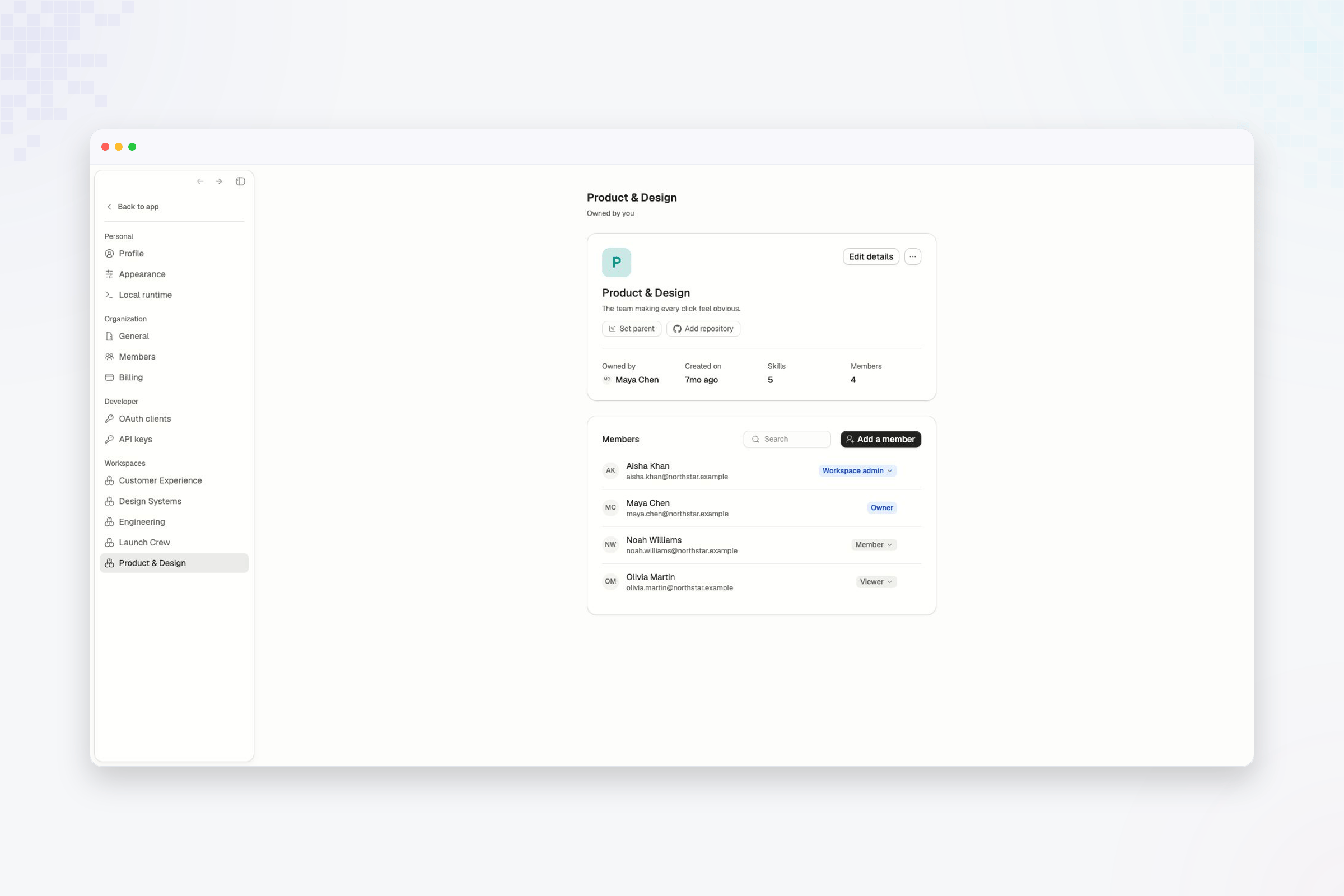
Open the member list
- Open Settings from the Atlan sidebar.
- Under Workspaces, select the workspace.
- Find the Members card.
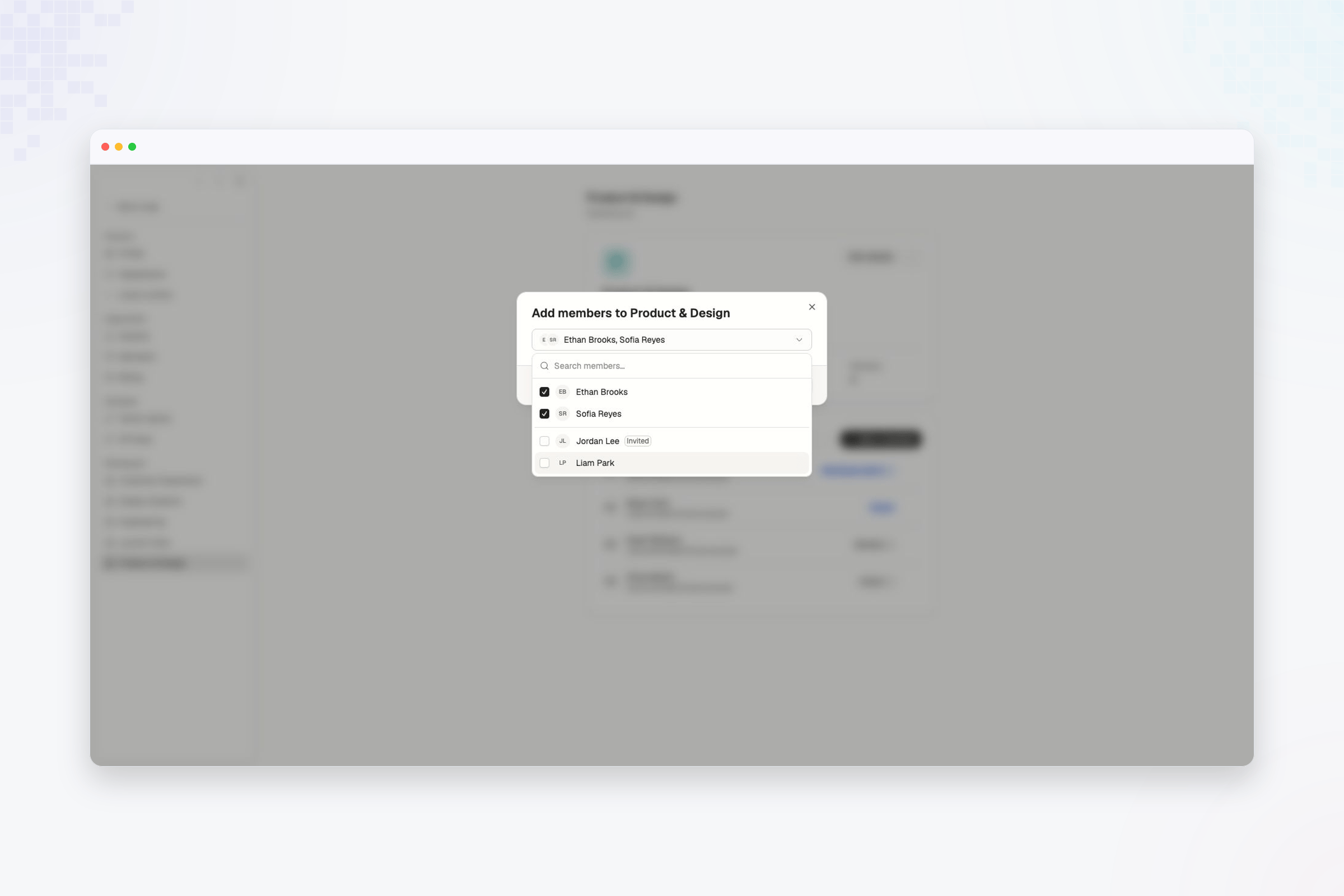
Add members
- Select Add a member.
- Search by name or email.
- Select one or more people.
- Confirm the addition.
Change a member’s role
- Find the member in the list.
- Select their current role badge.
- Choose Admin, Member, or Viewer.
Remove a member
- Open the action menu on the member’s row.
- Select Remove from workspace.
Inactive members
If an organization member is later suspended or deactivated, their workspace row remains visible with an Inactive label. They cannot be added to another workspace while inactive.Verify the change
Search the member list again and confirm the person’s role or absence. Ask the person to refresh Atlan before checking their workspace access.Roles and access
Compare Owner, Admin, Member, and Viewer access.