

Atlan creates your personal workspace automatically. It is private to you and
has no member-management controls. The procedures on this page apply to shared
workspaces.
Open workspace settings
- Open Settings from the Atlan sidebar.
- Under Workspaces, select the workspace you want to manage.
Create a shared workspace
- Open Brain and select your organization.
- Select New, then New workspace.
- Enter a display name.
- Add a description that tells people what belongs in the workspace.
- Select Create.
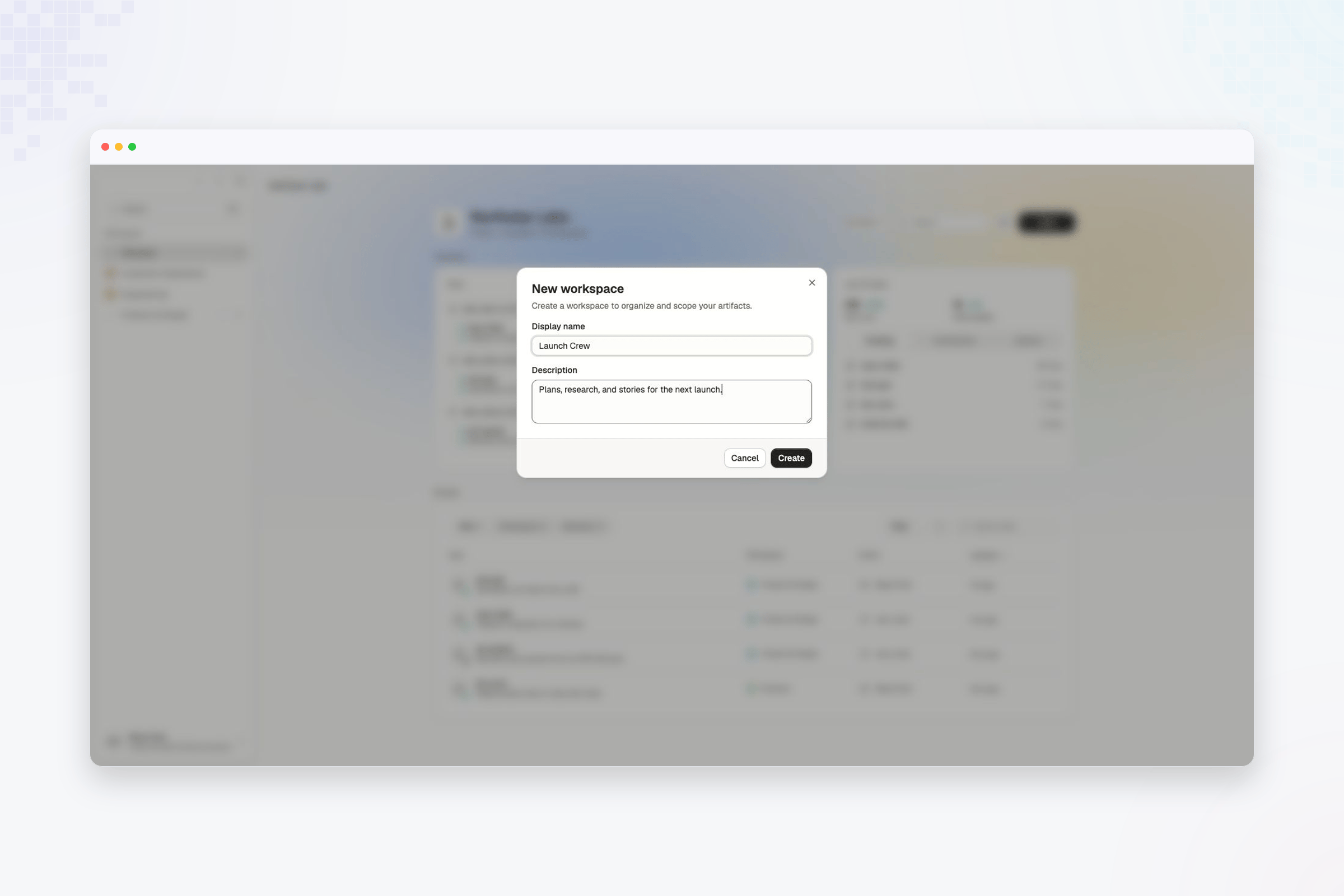
Edit workspace details
- Open the workspace in Settings.
- Open Workspace actions.
- Select Edit details.
- Update the name or description.
- Select Save.
Organize the workspace hierarchy
A sub-workspace sits inside another workspace. Use sub-workspaces when a team needs a focused area without creating another top-level branch. For example, Launch Crew sits inside Product & Design, so its launch plans stay near the design work they support. Select Set parent when no parent is set, or Move when the workspace is already nested. Choose the new parent from the workspace tree. New workspaces are created in a default location. Move a workspace only when a team needs that hierarchy to express a real ownership or access boundary. Atlan applies these rules when moving a workspace:- A workspace cannot be its own parent or move under one of its descendants.
- A workspace stays within its current top-level tree.
- A personal workspace cannot be used as a parent.
- Moving a workspace moves its nested workspaces with it.
Check workspace details
The details card shows the workspace owner, creation date, skill count, and member count. Use these values to confirm that you opened the intended workspace before changing access or deleting it.A workspace can show a linked repository when it came from a registered
source. Adding a repository manually is not available yet. The Connect
action remains disabled.
Next steps
Manage workspace members
Add people and update their workspace roles.
Roles and access
See what each workspace role allows.
Delete a workspace
Empty a workspace and delete its subtree.