

- Add MCP servers behind the gateway. Start from a built-in integration, such as Linear, Notion, or Glean, or paste the URL of any remote MCP server. The gateway discovers the server’s tools, catalogs them, and serves them to every connected client.
- Connect data platforms to Atlan. Add the gateway to Databricks or Snowflake as an MCP server, so their agents can use Atlan’s tools.
Before you begin
- You can manage the workspace the server will belong to. Everyone who can read that workspace can see the server’s tools, and everyone who can update it can run them.
- The server speaks Streamable HTTP and is reachable from the internet. stdio servers and legacy HTTP+SSE servers are not supported.
Built-in integrations
Atlan already knows the settings of these servers. Each uses per-person OAuth: Atlan registers itself with the vendor automatically, and each person signs in with their own account. An agent can see only what that person can see in the vendor’s product.1
Find the integration
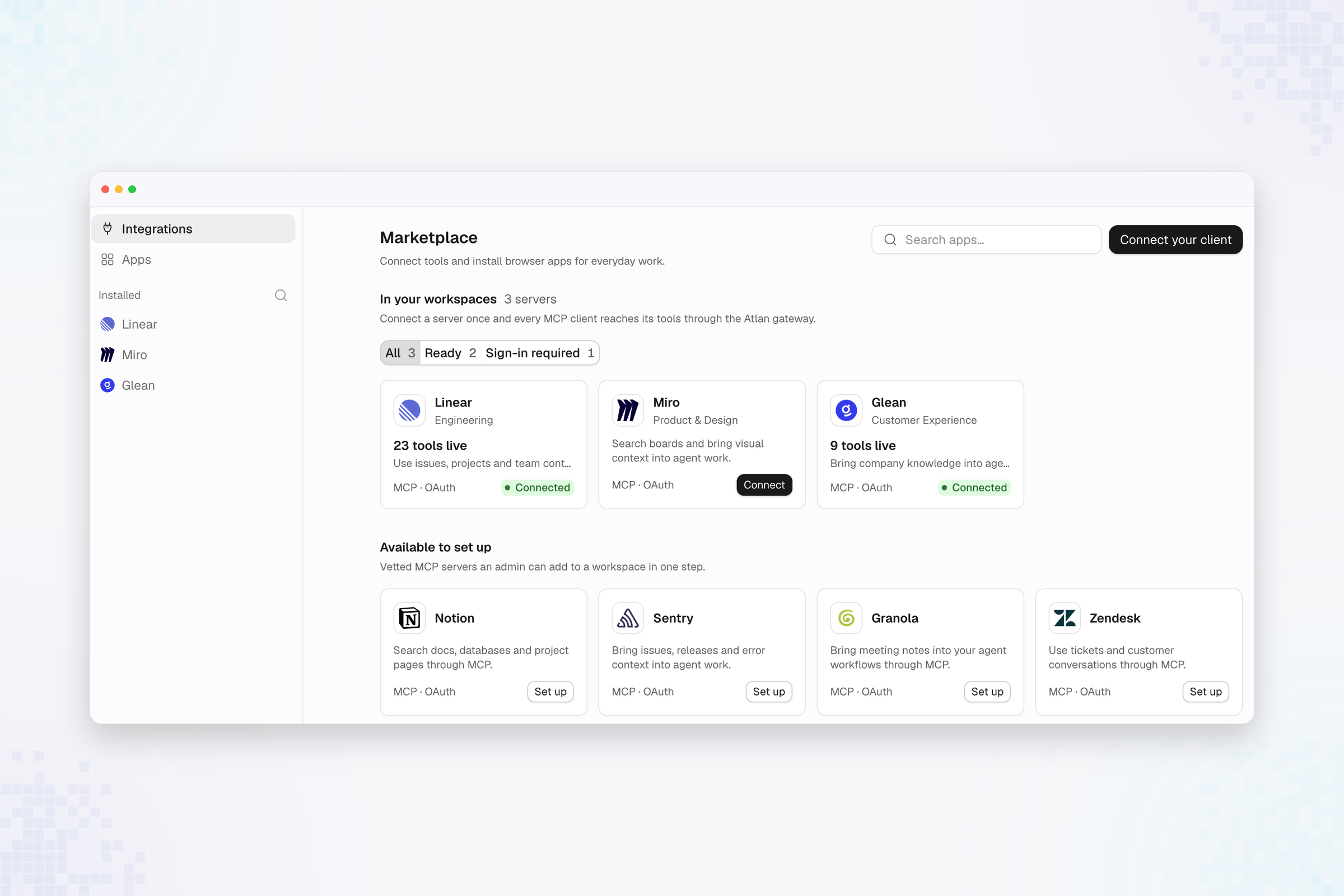
In Marketplace, under Available to set up, select Set up on
the integration. For Glean or Zendesk, enter your address.
2
Choose the workspace and add it
Choose the workspace that will own the server, confirm the Name and
Display name, and select Add server.
3
Each person connects
Each person who wants to use it selects Connect on the server’s card
and signs in at the vendor.
Any custom MCP server
You aren’t limited to the built-in list. Paste the URL of any remote MCP server, whether a vendor’s or one your team runs. Atlan works out how the server signs in, shows only the form that server needs, and catalogs every tool it offers.

Preview. Adding a custom server by URL is not enabled for every Atlan
account. Built-in integrations are available without it.
1
Enter the URL
In Marketplace, under In your workspaces, select
Add MCP server. Choose the Workspace, enter the Server URL,
for example
https://mcp.example.com/mcp, and select Continue.2
3
Confirm what Atlan found
What Atlan found shows the server’s name and sign-in method, and Atlan
pre-fills the Name and Display name. Complete the form it shows:
4
Add the server
Select Add server, or Test and add for a credential. Atlan tests
the credential first and refuses one the server rejects.
How the gateway catalogs tools
Once a server is added, the gateway connects to it, lists its tools, and stores each one in the catalog, usually within seconds. Every client then sees the tools asremote__<server-id>__<tool>, and agents can find them with
semantic search.
A server that uses each person’s account is not refreshed in the background,
because no shared credential exists. Check its connection after signing in.
Connection status
Until a person connects to a per-person server, its tools are hidden from that
person’s
tools/list, and the result names the server so the client can
prompt them.
Change or remove a server
- Turn off a server to take it out of service without deleting it.
- Change its URL to point at a new deployment. The gateway rediscovers its tools.
- Remove for everyone deletes the server and all of its tools.
Connect data platforms to Atlan
Agents in Databricks and Snowflake can use Atlan’s tools too. Add MCP Gateway to the platform as an external MCP server. Its agents can then search your Registry, read artifacts, and call any server registered in Atlan, with every call permission-checked and audited.

Preview. External MCP support is new in both Databricks and Snowflake
and may need to be enabled for your account.
The platform can act as an Atlan agent, which suits a shared assistant
where the audit shows the agent. It can also act as each person, where
people see only what they can see in Atlan and the audit shows the person. To
act as an agent, register an agent and keep
its
client_id and client_secret in your secret manager.
- Databricks
- Snowflake
- Open AI Gateway > MCPs > Register MCP Server, choose a
catalog and schema, name the service
atlan, and create a connection. - Set Host to
api.atlan.com, Port to443, and Base Path to/mcp. - Choose an Auth type:
- OAuth Machine-to-Machine acts as an Atlan agent. Enter its Client ID and Client secret, the token endpoint, and the scopes above.
- Dynamic Client Registration acts as each person. Each person authorizes Atlan on first use.
- Select the tools agents may use, such as every tool starting with
registry__. - Grant
EXECUTEon the service, plusUSE CATALOGandUSE SCHEMA. - If serverless egress is restricted, allow
api.atlan.comandauth.atlan.com.
atlan. See
Register an MCP service.registry__search_artifacts, then find the
call in Atlan under Tool calls.
Security
- Credentials are stored encrypted, resolved for each call, and never shown again or returned to an agent.
- With per-person OAuth, each call uses the caller’s own grant, issued for the server’s exact URL. If a person hasn’t connected, the call is refused. The gateway never falls back to someone else’s credential.
- The gateway refuses private, loopback, link-local, and cloud-metadata addresses, pins DNS for each connection, and does not follow redirects.
Next steps
Find and call tools
Let agents find the right tool with semantic search.
Track usage and audit
See every call across every integration.