> ## Documentation Index
> Fetch the complete documentation index at: https://platform.atlan.com/llms.txt
> Use this file to discover all available pages before exploring further.
> ## Agent Instructions
> To act on Atlan objects, use the Atlan MCP server at https://api.atlan.com/mcp or the atlanai CLI; `atlanai --map json` prints its command map. Run a read-only identity check before any write.
> The docs MCP server at /mcp searches these docs only. It cannot read or change Atlan objects.
> SDK packages: Python `atlanai` (PyPI) and TypeScript `@atlanai/sdk` (npm). Show Python first, then TypeScript.
# Bulk upload skills in Atlan Desktop
> Find local skill folders, review the batch, and upload it to one workspace.
Use this flow to move many local skill folders into one workspace from the
Atlan Desktop app. The app finds folders that contain `SKILL.md`, bundles each
selected folder, and reports the result for every skill.
## Before you start
* Use the Atlan Desktop app. This action is not available in the web app.
* Choose the workspace that should own the new skills.
* Keep only the files the skill needs in each folder. Do not upload secrets,
customer data, or private source material.
## Choose and review folders
1. Open the target workspace.
2. Select **New**, then **Import skills**.
3. Select one or more folders from your device.
4. Review the discovered folders. Every folder containing `SKILL.md` within
your selection appears in the list and is selected by default.
5. Clear any skill you do not want to upload, then select **Import**.
If the app says it could not scan a picked folder fully, choose a narrower
folder before importing. A partial scan can miss skills.
## Read the result
The desktop app uploads selected skills in sequential groups and shows progress
while each group settles. After the run, every selected skill has one result:
| Result | Meaning | What to do next |
| - | - | - |
| **Uploaded** | Atlan created the skill. It is pending review. | Wait for review to complete, then verify the active version in the skill profile. |
| **Already imported** | Atlan already has this content in the workspace. | Inspect the existing skill instead of uploading the same bundle again. |
| **Failed** | Atlan rejected the skill or could not complete the upload. | Read the item-specific reason, fix the folder, then retry only the failed skills. |
You can stop a long upload, but the batch already in progress can still finish.
Review the final result list before starting another import.
## Verify after review
New uploads remain pending review and are not shown in the normal active-skill
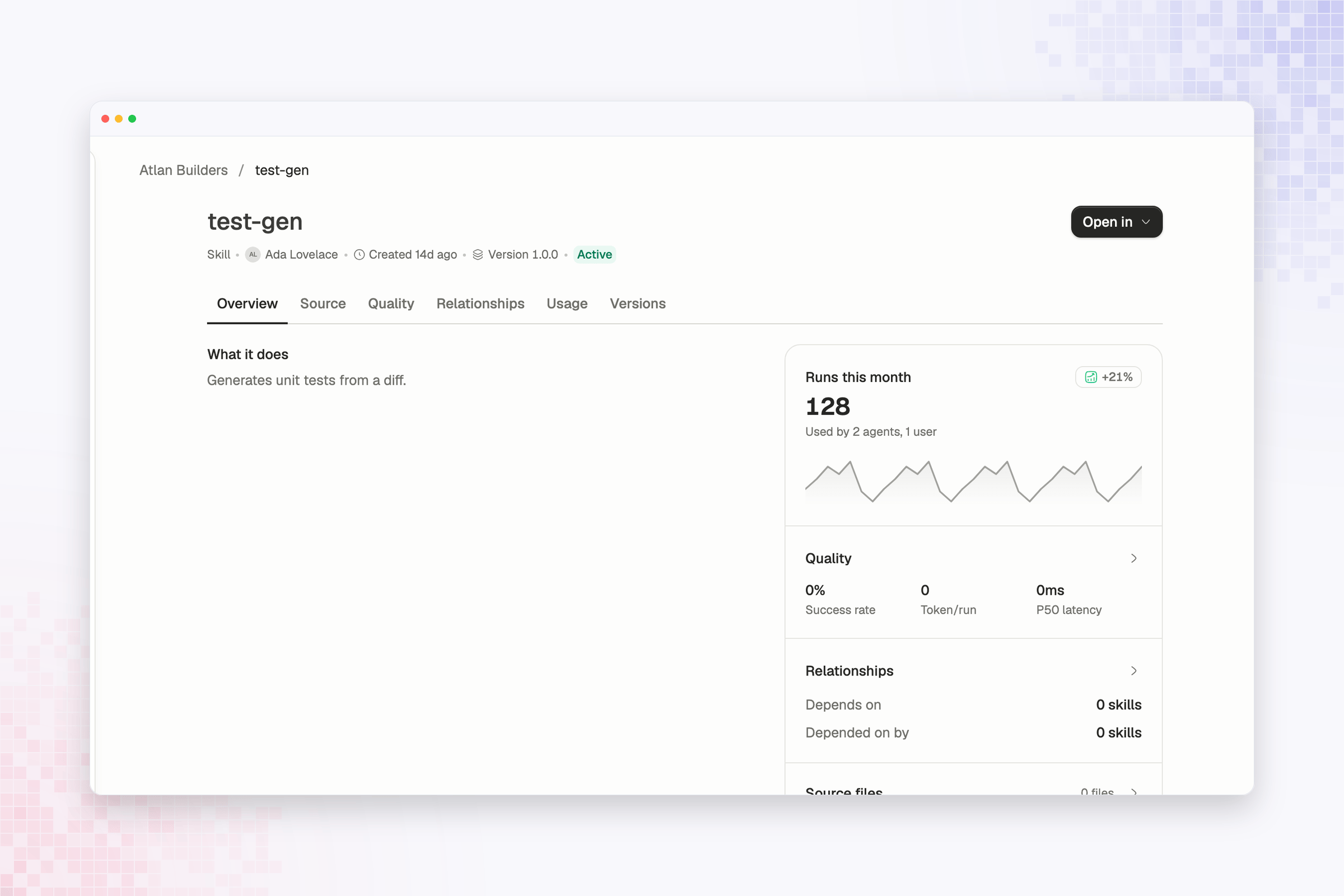
list until the review completes. Once the skill is available, open its profile
and confirm the version, source files, and workspace before sharing it with a
team or using it from a coding environment.
 Compare bulk upload with CLI, GitHub SkillSync, and MCP-assisted verification.